
Best Sensitivity for Free Fire One Tap Headshot 2027 Android
Landing a clean one-tap headshot in Free Fire can make a huge difference in close-range fights and ranked matches. However, many Android players struggle with drag shots because their crosshair moves too slowly, jumps over the enemy’s head, or feels different from one match to another.
The good news is that you do not need an expensive gaming phone to improve your aim. The right sensitivity settings, a comfortable fire button, stable performance, and regular practice can help you develop more consistent headshots.
We will cover the best sensitivity for Free Fire one tap headshot 2027 Android, including recommended settings for different phones, fire button size, DPI guidance, drag-headshot techniques, and common mistakes to avoid.
These values are practical starting points, not official or universally optimal settings. Your ideal setup depends on your device, screen size, touch response, frame rate, and personal playing style.
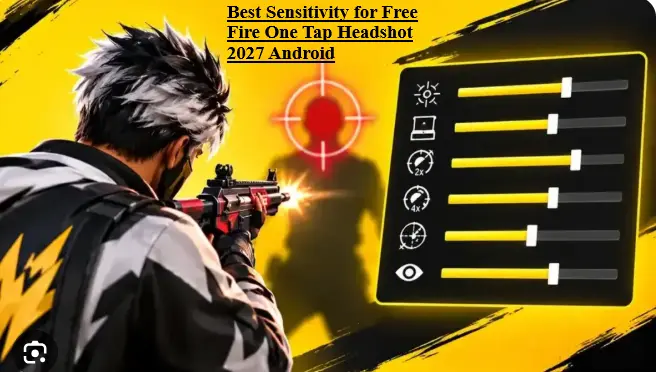
Best Free Fire Sensitivity Settings for One-Tap Headshots in 2027
If your game provides a sensitivity scale from 0 to 200, start with the following settings. They are designed as a starting profile for players who want responsive aiming and controlled upward drags.
Recommended Free Fire sensitivity settings
| Setting | Recommended value |
|---|---|
| General | 185 |
| Red Dot | 180 |
| 2x Scope | 160 |
| 4x Scope | 140 |
| Sniper Scope | 85 |
| Free Look | 120 |
What does each sensitivity setting do?
General sensitivity — 185
General sensitivity is an important starting point for unscoped aiming, camera movement, and many close-range drag-shot situations. A relatively high value can help your crosshair move quickly when you drag upward.
If your aim repeatedly jumps above an opponent’s head, try lowering General sensitivity by 5 points. If your crosshair moves too slowly, increase it gradually.
Red Dot sensitivity — 180
Red Dot sensitivity helps control aiming when using a red-dot sight. It is useful for players who prefer quick target adjustments while fighting at short or medium distances.
If your crosshair stops around the enemy’s chest instead of reaching the head, test a small increase. If it passes over the head, reduce the value slightly.
2x Scope sensitivity — 160
The 2x Scope setting is useful for players who fight at medium range and need controlled aiming with moderate magnification. A starting value of 160 offers a balance between quick adjustments and control.
Lower it if your aim feels shaky while tracking moving enemies.
4x Scope sensitivity — 140
The 4x Scope setting is intended for more magnified aiming. Excessive sensitivity can make small corrections difficult, especially on smaller screens.
Start at 140 and adjust in small steps until you can follow moving targets without constantly overshooting them.
Sniper Scope sensitivity — 85
Sniper aiming generally benefits from deliberate, controlled movements. Starting at 85 may help you make smaller adjustments when lining up a shot.
If the scope feels too slow, increase it gradually. If your aim moves past the target with a tiny finger movement, lower it.
Free Look sensitivity — 120
Free Look controls how quickly you can look around using the corresponding in-game control. It is mainly useful for checking your surroundings rather than directly improving headshot accuracy.
Keep it at 120 initially, then adjust it to match your preferred camera movement.
How to find your personal sensitivity?
Do not change every slider after one bad match. Instead:
- Open Training mode and select a weapon you commonly use.
- Test several drag shots using the recommended profile.
- Notice whether your crosshair stops below the head or moves too far above it.
- Change General or Red Dot sensitivity by around 3–5 points.
- Repeat the same test before making another adjustment.
This simple method makes it easier to identify which setting actually improves your control.
Best Sensitivity for Different Android Phones
The best Free Fire sensitivity settings in 2027 can vary considerably between Android devices. Two phones with the same amount of RAM may feel completely different because of their displays, touch response, refresh rates, and performance stability.
Use the following profiles as adjustment guidance rather than strict hardware rules.
Low-end Android phones with 2GB–4GB RAM
Players using entry-level phones may experience frame drops, delayed touch response, or inconsistent performance during busy fights. A high sensitivity value cannot fix these problems on its own.
Try the following approach:
- Start with General sensitivity around 175–185 on a 0–200 scale.
- Keep Red Dot around 170–180.
- Test 2x Scope around 145–160.
- Use a stable graphics preset, reducing visual effects if necessary.
- Choose a fire button size that allows comfortable dragging without accidental presses.
If your phone stutters during combat, prioritize stable performance before making major sensitivity changes. A smooth, repeatable drag is more useful than an extremely high slider value.
Mid-range Android phones with 4GB–8GB RAM
Mid-range phones can offer a comfortable balance between responsiveness and control, although actual performance depends on the specific model.
Start with the recommended table, then pay attention to how quickly the crosshair moves across the screen.
- Keep General and Red Dot relatively responsive for close-range fights.
- Reduce scope sensitivity if magnified aiming feels unstable.
- Test your settings at the frame rate your phone can maintain consistently.
- Keep your HUD comfortable enough to avoid awkward finger movements.
If your aim feels consistent but slightly slow, make small changes instead of rebuilding your entire setup.
High-end Android phones with 8GB RAM or more
High-end devices may offer higher refresh rates, responsive touchscreens, and more stable frame rates. These features can make aiming feel smoother, but they do not automatically make every high-sensitivity setup better.
Start with General 185 and Red Dot 180, then test whether your finger movements are translating into controlled crosshair movement.
Some players prefer lower sensitivity for precise corrections, while others prefer higher sensitivity for fast close-range drags. Your display size and aiming style matter just as much as the phone’s memory capacity.
Best Fire Button Size for One-Tap Headshots
The fire button is an important part of your drag-headshot setup because you need to press and move your finger comfortably without losing control.
A useful starting point is 45–60% of the available HUD fire-button size slider, if your version provides a percentage-based control.
A button in this range may provide enough space for a controlled upward drag while remaining comfortable to tap. However, it is not a universal sweet spot for every player.
How to choose the right fire button size
Try 45–50% if:
- You prefer a smaller button.
- You use a compact HUD layout.
- You find large buttons interfere with nearby controls.
Try 50–60% if:
- You need more space for your thumb.
- Your finger frequently slips off a smaller button.
- You use longer upward drags and have enough room on your screen.
To test the size, open Training mode and perform several short drags while standing at a comfortable distance from a target.
If you frequently miss the button or struggle to maintain contact during the drag, increase its size slightly. If it blocks your view or causes accidental taps, reduce it.
Also consider button opacity, placement, and the finger you use to shoot. A comfortable HUD layout is often more valuable than copying another player’s exact button size.
Best DPI Settings for Free Fire on Android
DPI is a frequently discussed topic in Free Fire headshot guides, but it is important to understand what it actually means.
DPI stands for dots per inch. In Android discussions, players often use the term when referring to display density or the Smallest width value in Developer options. These settings affect how the Android interface is laid out; they are not the same as the in-game sensitivity sliders.
Changing display density may alter interface scaling and how controls appear on the screen. It does not guarantee faster headshots or better aim.
Should you change your Android DPI?
If your current setup feels comfortable, you do not need to change DPI just to follow a headshot trend.
If you choose to experiment:
- Record your original display or Smallest width value.
- Check your phone’s current settings and understand which display option you are changing.
- Make a small adjustment rather than jumping to an extreme value.
- Check whether menus, text, HUD controls, and touch placement still feel comfortable.
- Revert to the original value if the interface becomes difficult to use.
Be especially careful with Developer options. Menu names and behavior can vary between Android manufacturers, and an unsuitable display configuration may make your interface harder to navigate.
There is no single DPI value that guarantees one-tap headshots on every Android phone. Focus on in-game sensitivity, comfortable controls, and consistent practice before experimenting with advanced display settings.
How to Hit One-Tap Headshots Consistently?
Sensitivity is only one part of a successful drag headshot. Crosshair placement, timing, weapon choice, and finger control also matter.
Follow these steps to develop a more repeatable technique.
Step 1: Place your crosshair around the upper chest or neck
Avoid starting every fight with your crosshair pointed at the ground. Keep it around the upper chest or neck area when approaching an opponent.
This reduces the amount of upward movement needed to reach the head.
Step 2: Start firing and perform a short upward drag
Press the fire button while moving your finger upward in a controlled motion. The goal is to guide the crosshair toward the head as the shot is fired.
You do not need to make a huge swipe. A short, deliberate movement may be easier to repeat than an exaggerated drag.
Step 3: Keep your movement smooth
Dragging too quickly or too far can send the crosshair above the target. Moving too slowly may leave it around the chest.
Pay attention to your results. If your shots repeatedly pass over the head, shorten the drag or reduce the relevant sensitivity slightly.
Step 4: Practice with suitable weapons in Training mode
Start with weapons you use regularly, including a close-range option and a weapon suited to medium-range fights.
Practice against stationary targets first. Once you can control your movement, try aiming at moving targets or changing your position between shots.
Different weapons have different firing behavior, so do not expect one exact movement to work equally well with every weapon.
Step 5: Adjust General or Red Dot sensitivity gradually
If the crosshair consistently moves too slowly, increase the relevant setting by a small amount.
If it repeatedly overshoots the head, reduce sensitivity or shorten your drag.
Test one change at a time. Repeating the same drill makes it easier to determine whether the adjustment is actually helping.
Step 6: Build consistency before playing ranked matches
Once your drag shots feel more controlled in Training mode, try them in casual matches. Then evaluate how well the technique works against moving opponents and under match pressure.
Do not judge your entire setup by one successful shot or one missed fight. Look for repeatable control over multiple attempts.
Common Sensitivity Mistakes to Avoid
Even a sensible starting profile can feel uncomfortable if you use it incorrectly. Avoid these common mistakes when adjusting your settings.
Setting every sensitivity slider to maximum
Maximum sensitivity can make the crosshair difficult to control. Fast movement is not useful if you constantly overshoot your target.
Copying settings from another phone without testing
A configuration that works on a large, responsive display may feel too fast or too slow on another device. Use other players’ settings as starting points, not guaranteed solutions.
Changing multiple settings at once
If you change General, Red Dot, DPI, and fire button size together, you may not know which change affected your aim. Adjust one variable at a time.
Ignoring frame drops and touch responsiveness
Performance problems can make your aiming feel inconsistent. Check whether the game stutters before assuming that sensitivity is the problem.
Expecting guaranteed headshots from sensitivity alone
Sensitivity cannot replace crosshair placement, timing, weapon control, and practice. Even skilled players miss shots, particularly against moving opponents.
Practicing only with stationary targets
Stationary targets are useful for learning basic drag control, but real opponents move, jump, and change direction. Gradually introduce movement into your practice.
Best Graphics and Performance Settings for Free Fire
Smooth gameplay can make it easier to repeat the same aiming movements. Your priority should be a stable experience rather than the highest possible graphics quality.
Choose a stable graphics preset
If your phone struggles during fights, try a lower graphics preset. On a device that handles the game comfortably, you can experiment with higher visual quality while checking that performance remains stable.
The best choice depends on your phone and the graphics options available in your current version.
Prioritize consistent frame rates
A stable frame rate can make aiming and camera movement feel more predictable. If your device supports a higher frame-rate option reliably, test it and keep the option that provides the smoothest overall experience without excessive heating or stuttering.
Do not assume that selecting the highest setting will always produce the best result on every phone.
Close unnecessary background apps
Closing resource-intensive apps before playing may help on devices with limited available memory. Avoid running unnecessary downloads or other demanding tasks during matches.
Keep your phone cool
Long sessions, charging during gameplay, and demanding graphics settings can contribute to heating. Heat may cause some phones to reduce performance.
Take breaks when necessary, avoid covering the phone’s cooling surfaces, and use settings your device can sustain comfortably.
Keep your controls consistent
Once you find a comfortable combination of sensitivity, HUD layout, and graphics settings, keep it unchanged for several practice sessions. Consistency helps you build muscle memory and recognize which adjustments are genuinely useful.
Frequently Asked Questions
What is the best sensitivity for Free Fire one-tap headshots in 2027?
On a 0–200 scale, a useful starting profile is General 185, Red Dot 180, 2x Scope 160, 4x Scope 140, Sniper Scope 85, and Free Look 120. Test these values on your Android phone and adjust them according to your aiming control.
Which sensitivity is most important for drag headshots?
General sensitivity is a good starting point for unscoped drag shots, while Red Dot sensitivity matters when aiming through a red-dot sight. The best setting depends on your weapon, aiming mode, and how you move your finger.
What is the best fire button size for headshots?
Start at approximately 45–60% of the available HUD slider, if your game displays a percentage. Adjust the size until you can tap and drag comfortably without losing contact or pressing nearby controls accidentally.
Does DPI improve headshot accuracy?
Changing Android display density may affect interface scaling and control placement, but it does not guarantee better aim. Start by optimizing your in-game sensitivity and HUD layout before experimenting with DPI-related settings.
Can low-end Android phones land one-tap headshots?
Yes. Players using low-end Android phones can land one-tap headshots with practice and suitable controls. Stable performance, comfortable finger movements, good crosshair placement, and weapon familiarity matter more than having an expensive phone.
Is there a guaranteed 100% auto-headshot setting?
No legitimate sensitivity configuration guarantees 100% headshots. Sensitivity settings help you control your aim, but opponents move unpredictably, a
Finding the best sensitivity for Free Fire one tap headshot 2027 Android is about discovering the right balance between speed and control. The settings in this guide give you a practical starting point, but your ideal configuration may differ depending on your phone, display, touch response, and aiming style.
Start with these recommended values:
- General: 185
- Red Dot: 180
- 2x Scope: 160
- 4x Scope: 140
- Sniper Scope: 85
- Free Look: 120
- Fire button size: 45–60% as a starting range
Use Training mode to practice short upward drags, keep your crosshair near the upper chest or neck, and adjust only one setting at a time. Choose graphics settings that maintain stable performance, and avoid relying on extreme sensitivity or DPI changes to solve every aiming problem.
With consistent practice, you can learn which movements work best for your device and build more reliable headshot habits before entering ranked matches.